
- Training
- Service
- Promotion
- Schedule
- Testing Center
- News
- Contact
1/11/2024


Learn how Power Query can be used to merge Excel tables.
Historically, VLOOKUP and its successor XLOOKUP have been the go-to functions for Excel users to retrieve data based on a key.
However, these functions come with limitations, such as one-dimensional searches and potential errors with non-exact matches. So, what is the alternative? Enter Power Query!
Power Query, a robust tool integrated into Excel, offers a transformative approach to data manipulation.
Instead of relying on conventional lookup functions, Power Query provides a more dynamic and versatile way to merge tables, transform data, and perform intricate tasks with ease.
Before diving into Power Query, make sure your data is structured correctly. Consistency in column formats, clear headers, and distinct identifiers are crucial for accurate results.
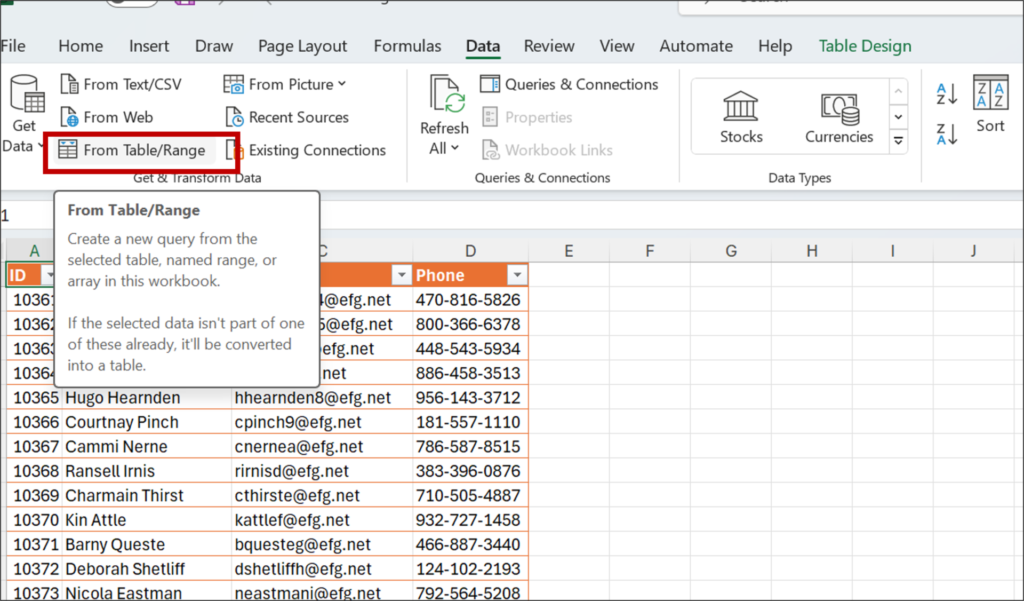
1. Accessing Power Query: Navigate to the ‘Data’ tab on the Excel ribbon and select ‘From Table or Range'.
2. Configuring the Merge: Choose the primary table and column (e.g., ‘rep ID') you wish to match. Subsequently, select the secondary table and its corresponding identifier column.
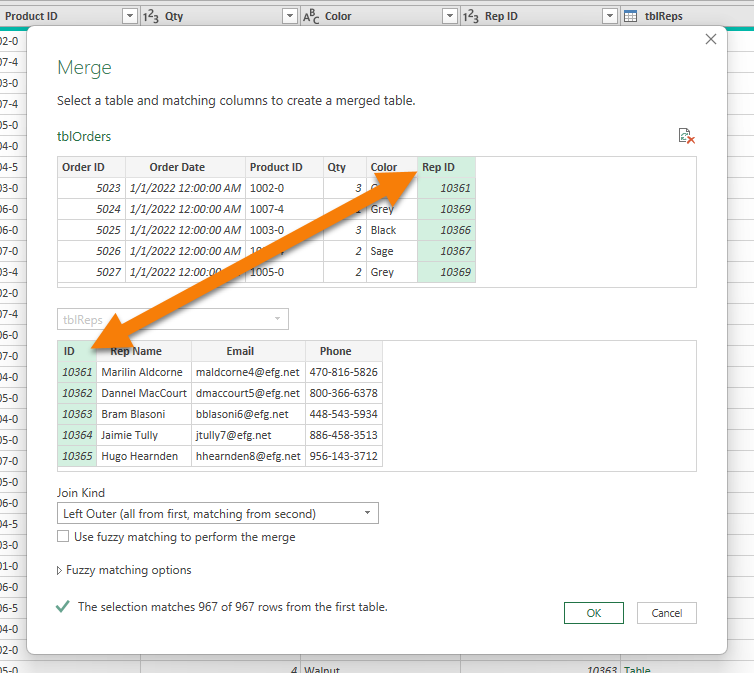
3. Finalizing the Merge: Adjust any additional settings as required and confirm the merge operation.
Once the merge operation is complete, use the ‘Expand' option to select columns from the secondary table.
This action ensures only relevant data is incorporated into your primary dataset. The merged data is now ready for analysis or further processing.
Source: excelcampus.com

12/11/2025


